
Introduction
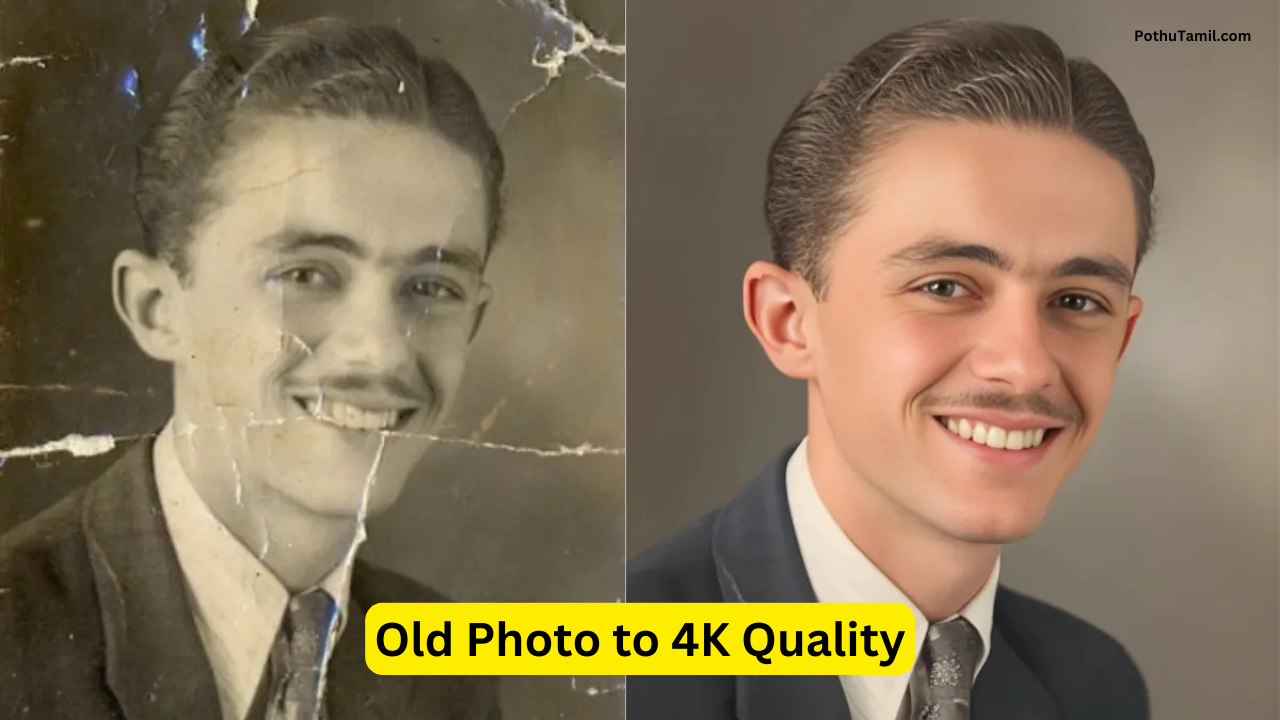
Old photos often hold valuable memories, but over time they can lose clarity, detail, and overall quality. With modern technology, it is now possible to restore and improve these images to ultra-high resolution. The process of converting old photo to 4K, 8K quality enhance has become popular among users who want to preserve memories in the best possible form.
Advanced tools powered by artificial intelligence can now sharpen blurry images, fix damage, and increase resolution without losing important details. This guide explains how the process works, its features, benefits, and the best ways to achieve high-quality results.
What Is Photo Enhancement & How It Works?
Photo enhancement is the process of improving the quality of an image by adjusting its resolution, sharpness, colors, and details. When it comes to upgrading old images, the goal is to restore clarity while increasing resolution to modern standards like 4K or 8K.

Modern tools use AI-based algorithms to analyze images and fill in missing details. These tools detect faces, textures, and edges, then enhance them to make the image look clearer and more natural. Unlike traditional editing, which requires manual adjustments, AI tools automate most of the process. Users simply upload an old photo, select enhancement options, and the software processes the image. The result is a sharper, more detailed version suitable for digital use or printing.
Also Read: Trending Couple Photo Editing
Key Features of Old Photo to 4K, 8K Quality Enhance
The process of old photo to 4K, 8K quality enhance includes several important features that help improve image quality effectively. One of the main features is AI upscaling, which increases image resolution while maintaining clarity. This ensures that the image does not become pixelated when enlarged.
Another key feature is noise reduction, which removes grain and unwanted artifacts from old or damaged photos. This helps create a cleaner and smoother appearance. Color correction is also important, as it restores faded tones and improves overall brightness and contrast.
Face enhancement is a widely used feature that improves facial details in portraits. It sharpens eyes, smooths skin tones, and enhances expressions while keeping the image natural. Some tools also offer scratch removal and restoration features, which repair damaged areas in old photographs.
These features work together to transform low-quality images into high-resolution outputs suitable for modern use.
Benefits of Enhancing Old Photos
Enhancing old photos provides several benefits, especially for preserving memories. One of the main advantages is improved clarity. Blurry or faded images can be restored to look sharp and detailed.
Another benefit is better usability. High-resolution images can be used for printing, digital sharing, or even professional projects. Enhanced photos are suitable for large prints without losing quality.
It also helps in preserving history. Old family photos, historical images, and important moments can be digitally restored and stored for future generations. This ensures that valuable memories are not lost over time.
Additionally, enhanced images look more appealing on modern screens, making them ideal for social media and digital albums.
Free vs Paid Photo Enhancement Tools – Which Is Better?
There are both free and paid tools available for photo enhancement, each offering different levels of quality and features. Free tools are widely accessible and provide basic enhancement options such as resolution increase and simple adjustments.
Paid tools, however, offer more advanced features and better results. They use more powerful AI models, which produce higher-quality outputs with greater detail and accuracy. Paid versions also provide higher resolution exports, including 4K and 8K options, along with faster processing speeds.
Free tools are suitable for casual users who need basic improvements. Paid tools are more suitable for users who require professional-quality results or frequently work with image enhancement.
Comparison / Alternatives – Photo Enhancement Tools
There are several tools available for enhancing old photos, each offering unique features. Some tools focus on simplicity, while others provide advanced editing capabilities.
Beginner-friendly tools allow users to enhance images with a single click. These are ideal for users who want quick results without learning complex software. Advanced tools offer detailed controls, allowing users to adjust sharpness, color balance, and restoration settings.
Some tools are designed specifically for AI upscaling, while others focus on full photo restoration. Choosing the right tool depends on your needs. If you want quick and easy enhancement, simple tools are sufficient. For detailed restoration, advanced software provides better control and results.
Use Cases
Photo enhancement is useful in many real-life situations. It is commonly used for restoring old family photos and preserving memories. Users can enhance wedding photos, childhood pictures, or historical images to improve their quality.
It is also useful for professional purposes. Photographers and designers can use enhanced images for projects, presentations, and marketing materials. Businesses may use restored images for branding or promotional content.
Social media users can also benefit by improving the quality of their photos before sharing them online. Enhanced images attract more attention and engagement.
Best Use Scenario
The best scenario for using photo enhancement tools is when you have low-resolution or damaged images that need improvement. Old photos with faded colors or blur can be restored effectively using AI tools.
It is also ideal when you want to print photos in large sizes. Converting images to 4K or 8K ensures that they remain clear and detailed even when enlarged. Using enhancement tools is most effective when combined with proper editing techniques, such as adjusting brightness and contrast for better visual results.

Is It Safe / Legal?
Using photo enhancement tools is generally safe when using trusted platforms. Most tools process images securely and do not misuse user data.
However, users should ensure they have the right to edit and use the images. Enhancing personal photos is safe, but using copyrighted images without permission may lead to issues.
Downloading tools from official sources also helps maintain security and avoid potential risks.
Who Should Use Photo Enhancement Tools?
These tools are suitable for a wide range of users. Individuals who want to restore old family photos can benefit greatly from enhancement technology.
Photographers and designers can use these tools for professional projects. Social media creators can improve their content quality by enhancing images before posting.
Even beginners can use these tools, as most platforms offer simple interfaces and automated processes.
Pros & Cons
Pros:
- Improves image clarity and resolution
- Restores old and damaged photos
- Easy to use with AI-based tools
- Suitable for both personal and professional use
- Supports high-quality output like 4K and 8K
Cons:
- Free tools may have limited features
- High-quality results may require paid tools
- Over-enhancement can make images look unnatural
- Processing time may vary depending on tool
- Some tools require internet access
Final Verdict
Enhancing old photos to 4K or 8K quality is now easier and more effective with modern AI tools. It allows users to restore memories, improve clarity, and create high-quality images suitable for modern use.
By choosing the right tools and using them properly, anyone can transform low-quality images into sharp and detailed visuals. Whether for personal use or professional projects, photo enhancement remains a valuable and practical solution in 2026.
Prompt 1:
Restore this old photo in a fully authentic, high-fidelity way. Do NOT alter the identity, facial structure, or expressions of the people in the image. Preserve the exact shapes of the eyes, nose, lips, ears, jawline, and all facial proportions exactly as they appear in the original photo.
Clean the image using a modern restoration style: remove all scratches, dust, stains, fold marks, and noise. Sharpen fine details naturally without over-smoothing. Enhance clarity, edges, and textures while keeping skin texture realistic and true to life.
Restore the colors to a balanced, natural tone without changing the original look of the subjects. Improve lighting and contrast to achieve a polished HD appearance. Maintain the original clothing, hairstyles, environment, and the period-appropriate background exactly as they are, only improving their clarity and color accuracy.
Reproduce the photo as a high-resolution, clean, crisp, HD color image with zero distortion.
Prompt 2:
{
“prompt”: “Use the original image as a strict reference and preserve 100% identity, face structure, pose, and composition. Perform ultra-high-resolution 8K upscaling with maximum detail enhancement. Add realistic skin texture with visible pores, fine lines, and natural imperfections, avoiding any plastic or artificial smoothing. Enhance facial details including sharp eyes, realistic eyelashes, natural eyebrows, detailed lips, and individual hair strands. Apply professional DSLR camera quality using a full-frame camera look with a premium 85mm or 50mm lens. Improve lighting with a natural key light, soft fill light, and subtle rim light to separate the subject from the background. Increase clarity and sharpness naturally without over-sharpening. Balance highlights and shadows with improved dynamic range and true-to-life colors. Reduce noise and compression artifacts while preserving original texture. Apply cinematic yet realistic color grading with accurate skin tones and authentic depth of field. Output should look ultra-photorealistic, high-end studio quality, DSLR-level realism.”,
“negative_pormpt”: “over-smoothed skin, plastic face, cartoon style, anime, painterly look, AI artifacts, distorted face, fake skin texture, blur, low detail, harsh sharpening, oversaturation, unrealistic lighting, color bleeding, noise artifacts”,
“resolution”: “7680×4320”,
“quality”: “8K”,
“style”: “photorealistic, DSLR”,
“detail_level”: “maximum”,
“identity_preservation”: “strong”,
“reference_image_weight”: “high”,
“noise_reduction”: “high without texture loss”,
“sharpening”: “natural and controlled”,
“lighting”: “realistic studio lighting”,
“camera”: {
“type”: “DSLR”,
“sensor”: “full-frame”,
“lens”: “85mm portrait lens”,
“aperture”: “f/1.8”
}
Prompt 3:
Ultra-high-resolution 4K enhancement based strictly on the provided reference image. Absolute fidelity to original facial anatomy, proportions, and identity. Preserve expression, gaze, pose, camera angle, framing, and perspective with zero deviation. Clothing, hair, skin, and background elements must remain unchanged in structure, placement, and design.
Recover fine-grain detail with natural realism. Enhance pores, fine lines, hair strands, eyelashes, fabric weave, seams, and material edges without introducing stylization. Maintain original color science, white balance, and tonal relationships exactly as captured. Lighting direction, intensity, contrast, and shadow behavior must match the source image precisely, with only improved clarity and expanded dynamic range. No relighting, no reshaping. Remove any grain.
Apply controlled sharpening and high-frequency detail reconstruction. Remove compression artifacts and noise while retaining authentic texture. No smoothing, no plastic skin, no artificial gloss. Facial features must remain consistent across the entire image with coherent anatomy and clean, stable edges.
Negative constraints: no warping, no facial drift, no added or missing anatomy, no altered hands, no distortions, no perspective shift, no text or graphics, no hallucinated detail, no stylized rendering. Output must read as a true-to-life, photorealistic upscale that matches the reference exactly, only clearer, sharper, and higher resolution.
Frequently Asked Questions
What does 4K or 8K photo enhancement mean?
It refers to increasing image resolution to ultra-high quality while improving clarity and details.
Can old photos really be restored?
Yes, modern AI tools can significantly improve and restore old images.
Is photo enhancement free?
Some tools are free, but advanced features may require payment.
Will enhancement affect image quality?
Good tools improve quality, but over-editing should be avoided.
Old photographs are windows to the past, capturing memories of family, friends, and life moments that often cannot be recreated. Over time, however, these images can become faded, scratched, or low-resolution, making it hard to preserve them digitally. Restoring such photos manually is time-consuming and often fails to deliver professional-quality results.
Enter Gemini AI, an AI-powered photo enhancement workflow designed to restore old images and upscale them to 4K resolution, producing crisp, vibrant, and lifelike results. In this guide, we will dive into how Gemini AI works, its features, workflow, performance, security, alternatives, pros and cons, and FAQs, giving you a complete understanding of this powerful tool.
Phone damage my photo change the camera please help me
Tvk
Photo editor