
Photopea online is a browser-based photo editing tool that allows users to edit images, create graphic designs, and work with layered projects without installing desktop software. Its interface and features are similar to those of professional image editors, making it a useful option for photographers, graphic designers, students, content creators, and businesses.
Whether you want to remove a background, edit a photo, create a YouTube thumbnail, design a social media post, or modify a PSD file, Photopea provides many tools directly through a web browser. Understanding how Photopea online works can help you decide whether it is suitable for your personal, educational, or professional design projects.
What Is Photopea Online?
Photopea is an online image editor designed for working with photographs, graphics, and layered design documents. It runs in a web browser, so users can access its editing workspace without installing a traditional desktop application.
One of its main advantages is support for PSD files, the format commonly associated with Adobe Photoshop. Photopea can also work with several other image and design formats, including JPG, PNG, SVG, PDF, and WebP, although the supported features can vary by format.
The editor includes tools for cropping, resizing, adjusting colors, selecting objects, adding text, creating layers, and applying effects. These capabilities make it suitable for both simple image adjustments and more detailed graphic design work.
You can access the editor through the official website: https://www.photopea.com/
How Does Photopea Online Work?
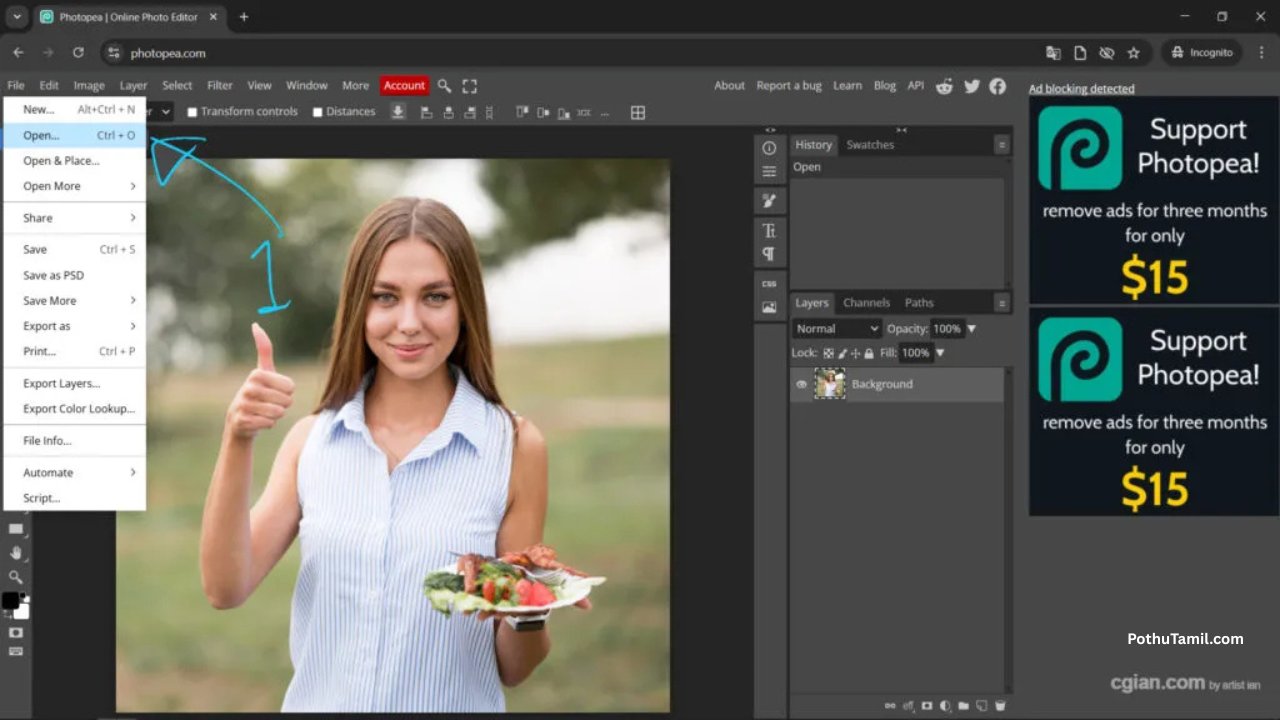
Photopea works inside your browser and provides an editing interface with tools, menus, layers, and a central canvas. Users can open an image or design file, make changes, and export the finished result in a suitable format.
To begin, open the Photopea website and create a new project or select a file from your device. Once the image loads, use the available tools to edit its appearance, add elements, or modify individual layers.
For example, you can select part of a photograph, remove an unwanted background, add text, adjust brightness, or combine multiple images. When the project is ready, use the export options to save the final image.
Photopea also supports layered editing, allowing users to make changes to separate elements without combining everything into one flat image. This is particularly useful when working with posters, thumbnails, advertisements, and other designs that may need future revisions.
Key Features of Photopea Online
Advanced Photo Editing Tools
Photopea provides common image-editing tools for cropping, resizing, rotating, selecting, retouching, and adjusting photographs. Users can work with brightness, contrast, color, and other visual properties to improve an image.
More advanced tools support selections, masks, blending modes, and layer effects. These features allow users to combine images, isolate objects, and create designs with greater control.
PSD File Support
One of Photopea’s most useful features is its ability to open and edit many Photoshop PSD files. This can help users who receive layered design templates or need to make changes to existing projects.
Depending on the file, some effects, fonts, or specialized features may not behave exactly as they do in Photoshop. It is a good idea to review the document after opening it and check the exported result before using it professionally.
Layers and Masks
Layers allow different elements of a design to be edited separately. A designer can keep text, photographs, shapes, and background elements on different layers and adjust them individually.
Masks provide additional control over which parts of a layer remain visible. These tools are useful for blending images, making selective adjustments, and creating composite graphics without permanently deleting every part of the original image.
Text and Graphic Design
Photopea includes text and shape tools that can be used to create banners, posters, logos, thumbnails, and social media graphics.
Users can change text size, alignment, color, and other formatting properties. Font availability depends on the fonts accessible to the editor, so a design may need adjustments if a particular font is unavailable.
How to Edit Photos Using Photopea Online
Editing a photo in Photopea begins with opening the original image. After loading it, you can crop the composition, straighten the image, adjust its dimensions, or correct its colors.
If you need to remove an unwanted object or background, use the appropriate selection and masking tools. The best method depends on the image: a simple background may be easier to select than a complicated scene containing hair, transparent objects, or fine details.
You can also add text, combine images, or apply adjustments on separate layers. Working non-destructively where possible makes it easier to revise your design if the result does not look right.
Before exporting, inspect the image at different zoom levels. Check edges, text alignment, image quality, and transparency to make sure the final result is suitable for its intended use.
Photopea Online for Background Removal
Background removal is a common reason people use browser-based image editors. Photopea offers selection and masking tools that can help separate a subject from its background.
For a photograph with a plain background, selecting the background and removing or masking it may be relatively straightforward. Images with complex edges may require more careful selections and manual refinement.
After removing the background, you can place the subject over a different image, use a solid-color background, or export it as a PNG with transparency when the project and export settings support it.
For product photography, profile images, promotional graphics, and online store listings, a clean background can help create a more consistent appearance. However, detailed images may require additional editing to avoid rough edges or unwanted remnants.
Photopea Online for YouTube Thumbnails and Social Media
Content creators can use Photopea to create YouTube thumbnails, Instagram posts, Facebook graphics, channel banners, and other digital content.
A typical thumbnail workflow involves opening a suitable canvas, importing a photograph, adding a background, placing text, and adjusting contrast to make the important elements stand out. Separate layers make it easier to move text or replace an image without rebuilding the entire design.
Businesses can also use Photopea to prepare promotional banners, advertisements, product graphics, and website images. Consistent fonts, colors, and layouts can help maintain a recognizable visual identity.
When preparing graphics for a particular platform, check the platform’s current recommended dimensions and file-size limits. Exporting at the correct size can help avoid unnecessary cropping or quality loss.
Photopea Online vs Adobe Photoshop
Photopea and Adobe Photoshop both provide image-editing and design tools, but they serve somewhat different needs.
Photopea runs in a browser and offers a convenient way to edit supported files without installing a full desktop editor. It can be useful for occasional editing, working on different computers, or making changes to PSD templates.
Adobe Photoshop is a professional desktop and creative application with a broader ecosystem of tools, integrations, and workflows. Its paid plans may be more appropriate for users who need advanced features, extensive creative workflows, or integration with other Adobe applications.
Photopea may be sufficient for many everyday editing tasks, while Photoshop can be a better fit for professionals whose projects depend on its specialized capabilities. The right choice depends on the tools you need, your budget, and the complexity of your work.
Photopea Online vs Other Photo Editing Tools
Several other tools can help users edit images online or on a computer. Canva is widely used for template-based graphic design, presentations, and marketing materials. Pixlr offers browser-based photo editing features, while GIMP is a free, open-source desktop image editor.
These tools differ in their editing approaches. Photopea is particularly useful for users who want a layer-based editor and compatibility with common design formats. Canva may be more convenient for quickly assembling template-driven graphics, while GIMP may suit users who prefer a desktop application.
Professional users may also consider Adobe Photoshop or other paid creative software when they need specialized features, advanced workflow options, or broader support resources.
Is Photopea Online Free?
Photopea offers a free version that provides access to many of its core editing features. This makes it an attractive option for students, casual users, and designers who want to edit images without immediately purchasing a subscription.
The free experience may include advertising, while paid options can offer benefits such as an ad-free interface or other plan-specific advantages. Features and pricing may change, so users should check Photopea’s official website for the latest details before subscribing.
For users who only need to crop photographs, edit PSD files, create thumbnails, or prepare basic graphics, the free version may be sufficient. People who use the editor frequently may want to compare the available plans and determine whether the additional benefits justify the cost.
Can You Use Photopea Online Without Installing Software?
Yes. Photopea is designed to run in a compatible web browser, which means users generally do not need to install a separate desktop application to begin editing.
This can be convenient when working on a shared computer or a device where installing software is restricted. A modern browser and a reasonably capable device can make the editing experience smoother, particularly for larger files.
However, complex projects with many layers or large images may require significant memory and processing resources. Performance can vary depending on the device, browser, file size, and complexity of the project.
Photopea Online for Business and Professional Design
Photopea can support small businesses, freelancers, online sellers, and marketing teams that need to edit images or prepare digital graphics.
Freelancers may use it to modify client-supplied PSD templates, create promotional images, or make quick revisions to existing designs. Online sellers can prepare product images, while marketing teams can develop campaign graphics and social media assets.
Businesses with more demanding requirements should also consider licensing, font permissions, client confidentiality, file compatibility, and workflow consistency. Before adopting any design tool for regular commercial work, check its current terms and ensure that the images, fonts, and other assets used in a project are properly licensed.
Is Photopea Online Safe to Use?
Photopea is a browser-based editor, but users should still take care when working with private or commercially sensitive files. Before opening confidential material in any online service, review the provider’s current privacy information and understand how the service handles files and data.
Use the official Photopea website rather than unfamiliar copies or websites that imitate the service. Keep backups of important projects, and avoid uploading confidential documents when you are unsure about the applicable data-handling practices.
For professional work, it is also useful to save editable project files regularly and export a separate copy of the finished design. This helps preserve the original project if later revisions are required.
Conclusion
Photopea online is a versatile browser-based image editor that allows users to edit photographs, work with PSD files, create layered designs, and prepare graphics without installing traditional desktop software. Its selection tools, masks, text features, and export options make it useful for students, content creators, freelancers, and small businesses.
Although Photopea may not replace every feature of professional desktop software, it offers a practical option for many everyday photo-editing and graphic-design tasks. By understanding its features, checking file compatibility, and choosing the right workflow, users can make the most of Photopea online for personal projects and professional creative work.