
Introduction
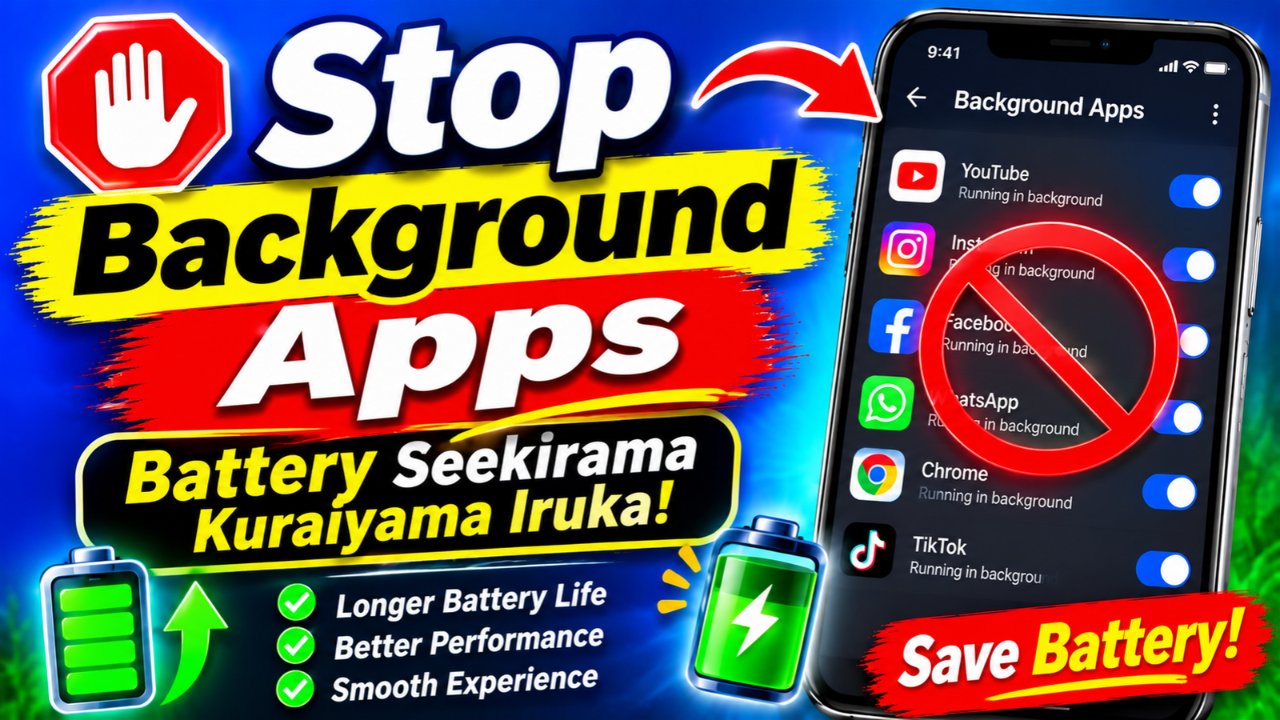
Stop Background Apps is an effective way to manage unnecessary application activity, improve smartphone efficiency, and understand why certain applications continue using device resources when they are not being used. Modern smartphones allow multiple applications to perform tasks in the background, including checking for updates, synchronizing files, receiving notifications, refreshing content, and accessing internet services. Although these features make mobile devices more convenient, unnecessary background activity can sometimes increase battery consumption, use mobile data, and affect overall device performance.
Many Android and iPhone users search for ways to stop background apps when their phones become slow, warm, or less responsive. Some users want to close running apps because they believe every application visible in the recent apps screen is consuming battery power. Others want to remove background apps that they no longer use but that continue performing unnecessary activities. Understanding how these processes work can help users make better decisions instead of repeatedly closing every application.
Background applications are not always harmful. Messaging applications, email services, navigation tools, cloud storage platforms, and security applications may need background access to perform important functions. Restricting these applications without understanding their purpose can delay notifications, interrupt synchronization, or affect essential services. The better approach is to identify applications that genuinely create unnecessary activity and manage their settings individually.
This complete guide explains how to stop background apps on Android and iPhone, how to close running apps safely, and how to remove background apps that are no longer required. It also explores battery optimization, mobile data management, privacy protection, and professional application management software used by businesses. Whether you are an individual smartphone user or an IT administrator responsible for multiple company devices, understanding background application management can help you maintain a more efficient and secure mobile environment.
What Are Background Apps?
Background apps are applications or application services that continue performing certain tasks when they are not actively displayed on the smartphone screen. An application does not always need to remain open in the foreground to perform useful functions. For example, an email application may check for new messages, a messaging platform may receive notifications, and a cloud storage service may synchronize recently updated files.
These activities allow applications to provide updated information without requiring users to open them repeatedly. When someone receives a new message, the notification may appear even though the messaging application is not currently visible. Similarly, a cloud backup service may upload selected files while the user is using another application.
However, not every application needs continuous background access. Some games, shopping applications, promotional applications, wallpaper tools, and rarely used utilities may continue performing unnecessary tasks. Depending on the application and device configuration, this activity can increase battery consumption or use mobile data.
It is also important to understand that an application appearing in the recent apps screen does not always mean it is actively consuming significant resources. Modern operating systems manage memory and background processes automatically. Some applications may remain suspended, while others use scheduled tasks or operating-system services to complete specific activities.
Therefore, the purpose of learning how to stop background apps is not simply to remove every application from memory. It is to identify applications that genuinely create unnecessary resource usage and manage their permissions appropriately.
Why Do Apps Run in the Background?
Applications run in the background because many services depend on continuous or scheduled access to device resources. Without these services, users might not receive important notifications or updated information at the right time.
For example, a business email application may need to synchronize messages to ensure that employees receive important communication. A cloud storage application may upload documents automatically to prevent data loss. A navigation application may use location services to provide directions during an active journey.
Social media applications may also refresh content, process notifications, and synchronize account information. Some applications use background services to monitor connectivity or maintain communication with remote servers. These functions can be useful, but they do not always need to run without restrictions.
Poorly optimized applications can sometimes use more resources than expected. An application with frequent synchronization, excessive notifications, or unnecessary location access may contribute to battery drain. Users who install many applications but rarely review their permissions may also experience unnecessary background activity.
Learning to stop background apps allows users to review these activities and decide which applications should have unrestricted access. Some applications may need continuous background operation, while others can work properly with restricted access or manual updates.
How Background Apps Affect Smartphone Performance
Background activity can influence smartphone performance in several ways, although the impact depends on the device’s hardware, operating system, and the applications being used. Understanding these effects makes it easier to decide when to close running apps and when to leave them alone.
Battery Consumption
Battery consumption is one of the most common reasons users search for ways to stop background apps. Applications that frequently access the internet, use location services, synchronize files, or process information may consume power even when the screen is switched off.
A single background application may not create a noticeable problem. However, multiple applications performing unnecessary tasks can contribute to higher overall battery usage. Users may notice that their phone loses charge faster during periods when they are not actively using it.
The best way to identify the cause is to review battery usage settings. Instead of immediately installing a third-party cleaner, users should first check which applications are consuming unusually high amounts of power. Restricting an application that genuinely uses excessive battery resources may be more effective than closing every application on the device.
Mobile Data Usage
Some applications use mobile data to refresh content, synchronize files, download updates, or communicate with online services. This can be a concern for users with limited data plans.
For example, a photo backup application may upload large files automatically. A social media application may preload images and videos. If these activities occur over a mobile connection, data usage can increase without the user directly opening the application.
Restricting background data for selected applications can help users control this activity. However, doing so may delay notifications, synchronization, and automatic updates. Users should review the requirements of each application before restricting its internet access.
Memory and Processing Resources
Applications may use memory and processing resources while performing background tasks. Modern Android devices manage these resources automatically, and the operating system may pause or close processes when additional memory is required.
Still, applications with poorly optimized background services can contribute to unnecessary resource usage. Users with older smartphones or devices with limited memory may notice performance problems more easily.
Closing or restricting a problematic application can sometimes improve responsiveness. However, repeatedly force-stopping every application is not a reliable long-term performance strategy. The operating system is generally better at managing memory than a third-party application that repeatedly closes other apps.
Device Temperature
Continuous background processing can contribute to additional heat, particularly when applications use network connections, location services, or intensive processing.
A warm smartphone does not automatically indicate that background apps are responsible. Charging, gaming, video recording, poor network coverage, and high ambient temperatures can also increase device temperature.
If a device becomes unusually hot while idle, checking battery usage and recently installed applications can help identify possible causes. If the problem continues, users should consider checking the device battery and seeking technical support.
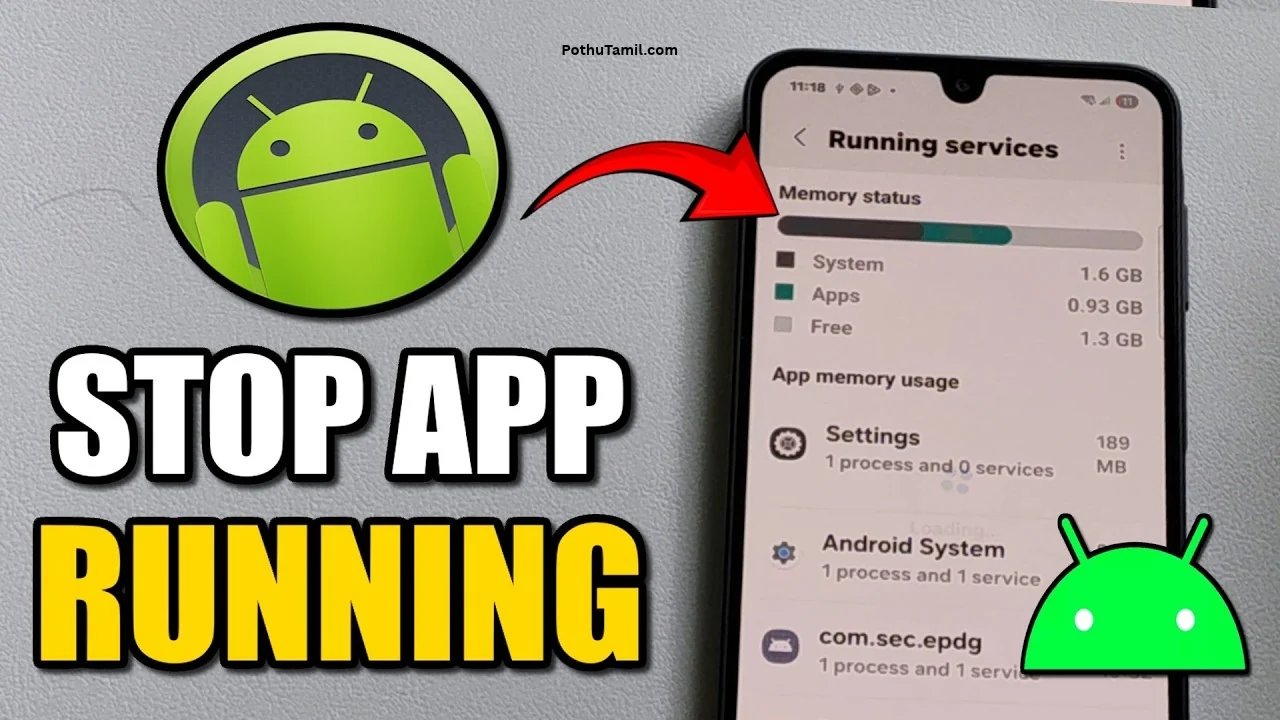
How to Stop Background Apps on Android
Android provides built-in tools that allow users to review application activity and control background permissions. The exact menu names can vary depending on the smartphone manufacturer, Android version, and device model.
A useful starting point is the Settings application. Open Settings and look for Battery or Battery Usage. The device may display applications that have consumed power during a recent period. Review the list and identify applications that show unusually high background usage.
After identifying a possible problem application, open its App Info page. Depending on the device, this page may provide battery usage, background activity, mobile data, and permission settings.
Some Android devices include an option to restrict background activity directly. Others provide battery optimization settings with options such as Optimized, Restricted, or Unrestricted. Selecting a more restrictive option may reduce background activity, but it can also delay notifications or prevent certain services from working as expected.
Google provides additional guidance for managing battery consumption and background activity through its official Android battery help guide.
The important point is to review applications individually. A messaging application that needs immediate notifications should not necessarily receive the same restrictions as a game that is only opened occasionally. This approach helps users stop background apps without interrupting important mobile services.
How to Close Running Apps on Android
Closing running apps is useful when an application becomes unresponsive, freezes, or continues behaving unexpectedly. Android smartphones generally provide a recent apps interface that allows users to view applications they have opened.
On many Android devices, users can swipe upward from the bottom of the screen and pause to open the recent apps view. Devices with navigation buttons may use a dedicated recent apps button. From this screen, users can swipe an application away to dismiss it from the recent apps interface.
However, dismissing an application from recent apps does not always disable all of its background services. Some applications may continue receiving notifications or performing scheduled tasks because the operating system manages those activities separately.
If an application is frozen or malfunctioning, users can open Settings, select Apps, choose the relevant application, and use the Force Stop option when available. This action immediately stops the application’s current processes. The application may start again when the user opens it or when an allowed system event triggers it.
Force Stop should be used carefully. Stopping essential applications or system services may affect notifications, synchronization, security features, and other device functions. Users should close running apps when there is a specific reason rather than force-stopping every application regularly.
How to Remove Background Apps Permanently
Sometimes restricting an application is not enough because the application is no longer useful. In this situation, uninstalling it may be a better solution. Removing applications that are no longer needed can also reduce unnecessary notifications, storage usage, and potential privacy concerns.
Users can generally remove downloaded applications by opening Settings, selecting Apps, choosing the application, and selecting Uninstall. Some devices also allow users to uninstall an application by pressing and holding its icon on the home screen or in the application drawer.
Uninstalling an application removes the installed application from the device, but users should understand that associated account data may still exist in the application’s online service. If the application stores information in a cloud account, uninstalling it does not necessarily delete that account or its remote data.
Some smartphones include preinstalled applications that cannot be uninstalled through normal settings. Depending on the manufacturer and device model, users may be able to disable certain preinstalled applications instead. Disabling an application can prevent it from being used and may stop some of its activity, but essential system applications should not be disabled without understanding their purpose.
Android also provides an unused-app management feature on supported devices. It can help optimize applications that have not been used for a long time by limiting certain activities and permissions. This is useful for users who install many applications but only use a small number regularly.
When users decide to remove background apps, they should check whether the application is connected to important services. For example, removing a business authentication application may affect access to company resources. Similarly, removing a backup application before checking whether important files have synchronized may create problems. A quick review before uninstalling is a sensible precaution.
Stop Background Apps to Improve Battery Life
Battery optimization should focus on applications that consume unnecessary power rather than closing every application on the device.
The first step is to examine battery usage. Open the phone’s Settings application and locate Battery Usage. Review the applications listed and compare their activity with how frequently they are used. If an application consumes significant battery power despite rarely being opened, review its permissions and background settings.
Adaptive Battery is another useful Android feature available on supported devices. It uses usage patterns to help manage power consumption by limiting activity for applications that are not frequently used. Keeping this feature enabled can help the operating system manage background activity automatically.
Battery Saver mode can also reduce certain background activities. Depending on the device, it may limit synchronization, network activity, and other functions to extend battery life. Some notifications or updates may arrive later while this mode is active.
Users should also consider location access. Applications that continuously request location information may use additional battery power. Changing location permissions to allow access only while an application is in use can reduce unnecessary tracking.
It is equally important to remember that battery health, screen brightness, network coverage, and device age influence battery performance. Closing running apps may help in specific situations, but it cannot repair a physically degraded battery. A combination of battery settings, permission management, and sensible application usage is generally more useful than relying on a task killer.
How to Manage Background Apps on Samsung Smartphones
Samsung Galaxy devices include built-in device care and battery management features. Depending on the model and software version, users may find options such as Background usage limits, Sleeping apps, Deep sleeping apps, and Battery settings.
The Background usage limits feature can help identify applications that are not used frequently. Users can place selected applications into sleeping categories so that they perform fewer background activities.
Sleeping applications may still provide certain notifications or perform limited tasks depending on their configuration. Deep sleeping applications generally have stronger restrictions and may not work normally until the user opens them.
Samsung users should avoid placing essential communication, security, navigation, or work applications into restrictive categories if they depend on timely notifications.
Device Care can also provide information about battery consumption, storage, and general device condition. These built-in features are usually a sensible starting point before installing external phone cleaning applications.
For users who want to stop background apps on Samsung phones, it is important to understand the difference between sleeping and deep sleeping applications. Choosing the correct setting can reduce unwanted activity without unnecessarily affecting important services.
How to Stop Background Apps on iPhone
iPhones manage background activity differently from Android devices. iOS controls when applications can refresh content, receive notifications, and perform background tasks.
One important setting is Background App Refresh. Users can open Settings, select General, and choose Background App Refresh. From there, they can disable background refreshing completely or manage it for individual applications, depending on their requirements.
Disabling Background App Refresh does not mean that every notification will stop working. Push notifications and background content refreshing are separate functions. However, certain applications may take longer to update information when opened.
Users can also review battery usage through Settings and Battery. This screen provides information about applications and their energy consumption. If an application is using an unusual amount of power, users can review its permissions, update it, or remove it if it is no longer required.
For an application that freezes or stops responding, users can open the app switcher and close it. Repeatedly force-closing all applications is generally unnecessary because iOS manages inactive applications automatically.
The best approach is to restrict only the applications that genuinely create problems while allowing essential services to function normally. Users who want to stop background apps on iPhone should focus on Background App Refresh, location permissions, and battery usage rather than trying to close every application repeatedly.
Best Software for Managing Background Apps in Businesses
Individual users can manage most background activity through built-in phone settings. Businesses, however, may need centralized solutions because employees use multiple smartphones, tablets, and work applications.
Enterprise mobile device management software helps IT teams configure security policies, manage application access, distribute approved applications, and protect organizational information. These platforms are particularly useful when employees access business email, customer records, financial documents, and internal communication tools through mobile devices.
Enterprise solutions are not ordinary phone-cleaning applications. They provide broader administrative capabilities that help organizations manage devices and business applications. Their relevance to background app management comes from centralized configuration, application governance, and security policies.
Microsoft Intune
Microsoft Intune is an endpoint management and mobile application management platform designed for organizations. IT administrators can use it to manage supported devices and applications, apply security policies, and protect company information.
Its mobile application management capabilities are relevant to organizations that want to control business data without necessarily managing every personal feature of an employee’s smartphone. For example, administrators can apply policies to supported work applications and help protect organizational information.
Microsoft Intune is not a simple background app cleaner. It is an enterprise management solution that helps businesses control application configuration, security, and data access. Its value is especially relevant to companies with remote employees, bring-your-own-device policies, and large mobile workforces.
Organizations considering enterprise application management can review Microsoft’s official Intune app management documentation.
ManageEngine Mobile Device Manager Plus
ManageEngine Mobile Device Manager Plus is a mobile device management solution for organizations that need to manage smartphones, tablets, and other supported endpoints. It can help IT administrators configure device policies, manage applications, and monitor enrolled devices.
For companies with multiple employees, centralized management can reduce the amount of manual work involved in configuring individual devices. Administrators can apply consistent policies and manage business applications through a centralized platform.
Its relevance to background app management is indirect but important. Instead of asking every employee to manually change individual settings, an organization can use device management policies to improve application governance and security where supported.
Jamf Pro
Jamf Pro is an Apple device management platform used by organizations that manage fleets of Mac computers, iPhones, and iPads. It helps IT teams configure devices, deploy applications, and enforce management policies.
For organizations using Apple devices, centralized management can make it easier to maintain consistent configurations. Businesses can manage approved applications and device settings according to their operational and security requirements.
Jamf Pro is not designed to close every background process on an iPhone. Instead, it supports broader device and application management, which can help organizations maintain better control over their mobile environment.
IBM MaaS360
IBM MaaS360 is an enterprise mobility management and unified endpoint management platform. Organizations can use solutions in this category to manage supported endpoints, control application access, and strengthen security policies.
Businesses with employees working across multiple locations may need centralized visibility into devices that access company information. Enterprise management platforms can help IT departments apply consistent security requirements and manage business applications.
The choice between these solutions depends on device compatibility, licensing, security requirements, administrative features, and the size of the organization. A small business may only need basic mobile management, while a larger enterprise may require advanced identity controls, compliance monitoring, and integration with existing security systems.
Why Businesses Need Background Application Management
Background application management is not only a battery optimization issue. In business environments, application activity can affect data security, employee productivity, compliance, and device management.
Employees may install applications that request access to location information, contacts, files, microphones, cameras, and other device resources. If organizations do not have clear application policies, sensitive business information may be exposed to unnecessary risks.
For example, an employee may use a personal file-sharing application to store work documents. Another employee may install an application that requests permissions unrelated to its main purpose. These situations can create security and compliance concerns.
Mobile device management (MDM) platforms help organizations establish application policies and control how business information is accessed. Mobile application management (MAM) solutions can also protect organizational data inside supported applications.
Companies should create clear policies that explain which applications employees can use for work, how business information should be stored, and which permissions are necessary. They should also review application access regularly and remove outdated work applications when employees change roles or leave the organization.
This type of application governance is particularly important in industries that handle confidential customer information, financial records, healthcare information, and internal business documents. Organizations may also evaluate endpoint security software, identity and access management solutions, and mobile threat defense platforms as part of a wider security strategy.
These business solutions have a different purpose from ordinary phone cleaners. They are designed to help companies manage security risks and protect organizational information across supported devices. Their inclusion is relevant when discussing professional application management, but they should not be presented as tools that automatically close every background process.
Security and Privacy Risks of Unnecessary Background Activity
Background activity can sometimes raise privacy concerns when applications request permissions they do not genuinely need.
For example, a simple wallpaper application may not require continuous access to location information. A basic calculator does not normally need access to contacts. If an application requests permissions that appear unrelated to its purpose, users should review the request before granting access.
Location access deserves particular attention because it can reveal movement patterns and frequently visited places. Users should check whether an application needs location access all the time or whether access only while using the app is sufficient.
Microphone and camera permissions should also be reviewed. Users should grant these permissions only when they are necessary for the application’s intended features.
Restricting background activity can reduce unnecessary data collection in some situations, but it is not a complete security solution. Users should also install applications from trusted sources, keep operating systems updated, use strong account authentication, and remove applications that are no longer needed.
Businesses should consider endpoint security software, mobile threat defense, identity management, and access control as part of a wider mobile security strategy. Simply closing background applications cannot protect a device from every cybersecurity threat.
Are Background App Cleaner Applications Useful?
Many third-party applications advertise features such as closing running apps, clearing memory, saving battery, and improving smartphone speed. Some provide convenient dashboards, but users should understand what these tools can and cannot do.
Modern operating systems already include memory management and battery optimization features. A third-party cleaner may not be able to provide deeper control than the operating system allows. Some cleaner applications may also request extensive permissions or display frequent advertisements.
Repeatedly closing applications can sometimes make the device work harder if those applications need to restart and reload their data. This is one reason why automatically closing every application is not always an effective battery-saving method.
Before installing a cleaner, users should review its developer, permissions, privacy policy, recent updates, and user feedback. They should be cautious of applications that promise unrealistic performance improvements or request unnecessary access to personal information.
For most users, built-in battery settings, app permissions, background data controls, and application uninstall options are sufficient for managing common background activity. Users should not assume that a paid cleaner automatically provides better performance than the device’s built-in tools.
Common Mistakes to Avoid When Closing Running Apps
One common mistake is force-stopping every application repeatedly. This may interrupt useful services and create unnecessary restarts. It is better to identify the applications responsible for excessive activity and manage them individually.
Another mistake is disabling important communication applications. If users restrict email, messaging, or security applications too aggressively, they may miss important alerts or experience delayed synchronization.
Some users also install multiple memory cleaner applications at the same time. These tools may compete for system resources and create more notifications without providing meaningful improvements.
A further mistake is assuming that every slow smartphone has a background application problem. Low storage space, outdated software, weak network connections, damaged batteries, and hardware limitations can also affect performance.
Users should investigate the actual cause before changing important settings. A measured approach is more effective than applying every available restriction. Knowing when to close running apps and when to allow the operating system to manage them is an important part of maintaining a reliable smartphone.
How to Identify Which Apps Should Be Restricted
The best applications to restrict are generally those that do not need to provide immediate updates and do not perform essential services.
For example, a rarely used game may not need continuous background activity. A shopping application that is opened only occasionally may not need frequent synchronization. A wallpaper application may not require location access or unrestricted battery usage.
On the other hand, messaging applications, business email, navigation tools, security applications, and cloud backup services may need background permissions to perform their intended functions.
Users should consider how often they use each application, what information it processes, and whether delayed updates would create problems. If restricting an application causes missed notifications or synchronization failures, its background settings may need to be adjusted.
This application-by-application approach provides a better balance between battery life, convenience, and performance. It also helps users stop background apps without accidentally disabling services that they depend on every day.
Frequently Asked Questions About Stop Background Apps
Does stopping background apps improve phone speed?
Stopping an application that is malfunctioning or consuming excessive resources may improve responsiveness in some situations. However, closing every application does not automatically make a smartphone faster. Modern Android and iOS systems manage memory and inactive applications automatically. Users should focus on identifying resource-heavy applications, removing unnecessary software, and maintaining sufficient storage space.
How can I close all running apps on Android?
Many Android devices provide a recent apps screen where users can dismiss applications individually. Some manufacturers also provide a Close All option. The available feature depends on the device and operating system version. Dismissing applications from this screen does not necessarily stop every background service or notification process.
Is it safe to remove background apps?
It is generally safe to restrict or uninstall applications that are not needed, provided they are not essential system components or services. Before changing settings, users should understand what the application does. Restricting important messaging, security, backup, or navigation applications may affect their normal functions.
Does stopping background apps save battery?
It can help when selected applications are using significant power in the background. However, the improvement depends on the application, device, and usage pattern. Screen brightness, network signal strength, battery health, location services, and other system activities also influence battery consumption.
Why do apps continue running after I close them?
Applications may use background services, scheduled tasks, push notifications, or operating-system features that continue working after the app is dismissed from the recent apps screen. This is normal for many applications. Users can review battery and background activity settings to determine whether an application needs restrictions.
Should I use a task killer to close running apps?
Most users do not need a separate task killer. Android and iOS already manage inactive applications and system resources. Some task killers may repeatedly stop applications that the operating system or user needs, causing unnecessary restarts. Built-in settings are usually a better starting point.
How do I stop apps from using mobile data in the background?
Users can review mobile data settings for individual applications and restrict background data where supported. The menu location varies by device. Restricting background data may delay notifications, synchronization, and automatic updates, so essential applications should be configured carefully.
Can background apps cause a phone to overheat?
Some applications can contribute to device heat when they continuously process information, use location services, or transfer data. However, charging, gaming, video recording, poor network coverage, and environmental temperature can also cause heat. Users should review battery usage and seek technical support if the device becomes unusually hot.
Is it better to disable or uninstall unused apps?
Uninstalling an application is usually the better option when it is no longer needed. Disabling may be useful for certain preinstalled applications that cannot be removed normally. Users should avoid disabling system components unless they understand their purpose.
Do iPhones need background apps to be closed regularly?
No. iOS manages inactive applications automatically. Users can adjust Background App Refresh and review battery usage when an application creates a specific problem. Regularly closing every application is not necessary for normal iPhone operation.
Can businesses control applications on employee phones?
Yes. Organizations can use mobile device management software and mobile application management solutions to configure supported devices, control business application access, and protect company data. Platforms such as Microsoft Intune, ManageEngine Mobile Device Manager Plus, Jamf Pro, and IBM MaaS360 support different enterprise management requirements.
Conclusion
Stop Background Apps is a useful practice when smartphone applications consume unnecessary battery power, mobile data, or system resources. However, effective background management is not about closing every application or disabling all background services. It is about understanding which applications need continuous access and which ones can operate with fewer permissions.
Android and iOS provide built-in settings that help users review battery usage, manage background refresh, restrict unnecessary activity, and uninstall applications they no longer need. These features should be the first choice before installing third-party cleaner or task management applications.
For individual users, reviewing application permissions and restricting unnecessary background activity can help improve device efficiency. For businesses, mobile device management software, enterprise mobility management platforms, and endpoint security solutions provide more structured ways to manage applications, protect company information, and maintain consistent device policies.
The most effective way to stop background apps is to balance performance, battery life, security, and convenience. When users manage applications according to their actual needs, they can reduce unnecessary activity without interrupting important services. A careful approach to closing running apps and removing unwanted background apps can support a smoother and more reliable smartphone experience.