
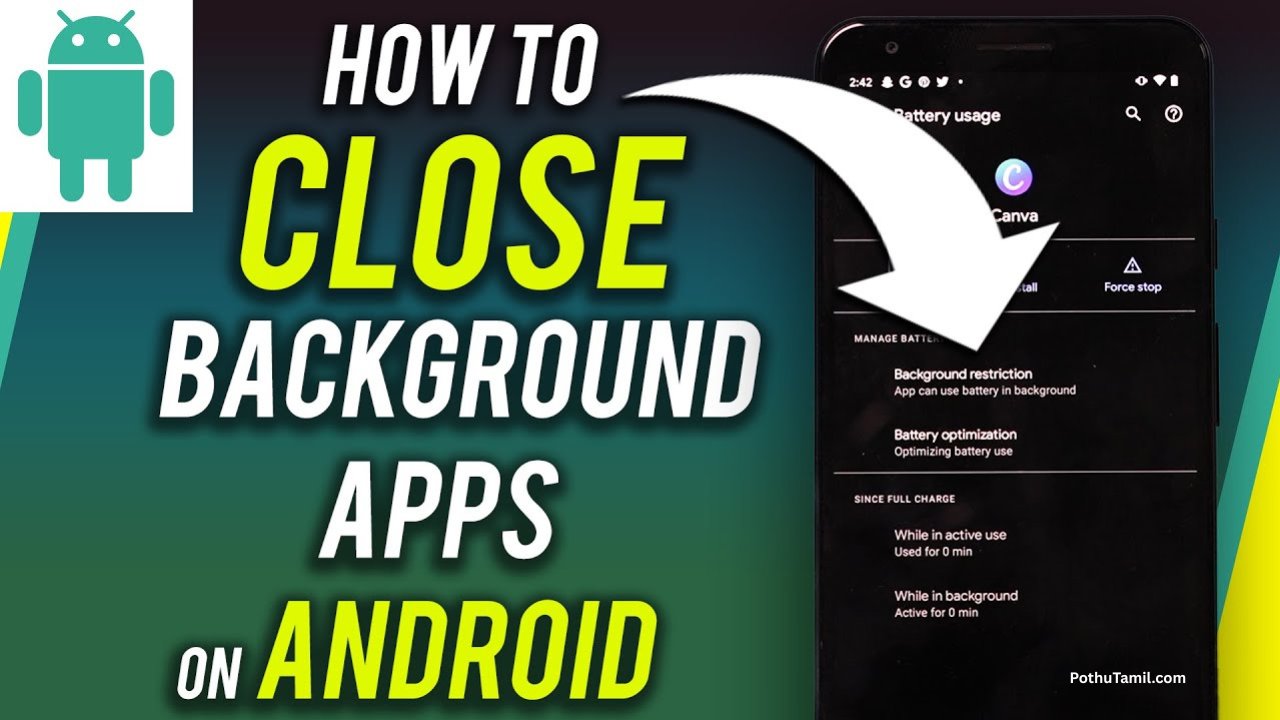
If your Android phone suddenly becomes slow, shows unwanted pop-ups, drains battery unusually fast, or displays strange security warnings, you may be dealing with Android malware or unsafe software.
Learning how to remove malware from Android phone is important because malicious apps can potentially access personal information, interfere with normal device operation, and put sensitive accounts at risk — especially when your phone is connected to mobile banking apps, UPI payments, email, and other financial services.
Whether you use a Samsung Galaxy, OnePlus, Xiaomi, Motorola, Vivo, Oppo, or another Android smartphone, the steps below can help you identify suspicious software and improve your device security.
How to Know If Your Android Phone Has Malware
Malware does not always display an obvious warning. Sometimes, the first indication is simply that your phone starts behaving differently.
Common warning signs include:
- Frequent unwanted pop-up advertisements
- Unusual phone slowdowns
- Very fast battery drain
- Unknown apps appearing on the device
- Browser redirects or unexpected tabs
- Storage space disappearing without explanation
- Apps crashing repeatedly
- Unusual messages or emails being sent from your accounts
- Fake virus or security warnings asking you to make a payment
- Excessive advertisements appearing outside normal apps
Some of these symptoms can also be caused by low storage, outdated software, browser notifications, or a poorly designed application, so they do not automatically confirm that your phone has malware.
Step 1: Run Google Play Protect
The first step in learning how to remove malware from Android phone is checking the device with Google Play Protect.
Google Play Protect can check applications installed through Google Play and can also scan apps obtained from other sources. If it identifies potentially harmful software, it may warn you, disable the application, or remove it.
To check Play Protect:
- Open the Google Play Store.
- Tap your profile picture.
- Select Play Protect.
- Open the Play Protect settings.
- Make sure Scan apps with Play Protect is enabled.
- Run a security scan and follow any recommended action.
If you frequently install APK files from outside Google Play, enabling additional harmful-app detection can provide another layer of scanning.
Why Play Protect Matters for Financial Apps
A compromised Android phone can create additional security concerns when it is used for UPI apps, mobile banking, online shopping, or investment services.
Apps such as PhonePe, Google Pay, Paytm, Groww, and Zerodha can involve sensitive financial information, so keeping Android security features enabled is especially important for Indian users.
Step 2: Uninstall Suspicious Android Apps
If the problem started shortly after installing an application, review your recently installed apps.
Look carefully for applications that:
- You don’t remember installing
- Came from an untrusted website
- Request unnecessary permissions
- Display excessive advertisements
- Use full-screen overlays
- Behave differently from their advertised purpose
- Were installed immediately before the problem started
Go to Settings > Apps and review the installed applications. Menu names can vary depending on your Android manufacturer.
If you identify an application you do not trust or no longer need, uninstall it.
Be Careful With Fake Antivirus Apps
One common trick is a fake security warning claiming that your phone has multiple viruses and asking you to install a particular antivirus app or make a payment.
Don’t automatically trust a pop-up simply because it uses words such as “virus,” “security,” or “Android protection.”
Use your phone’s built-in security tools first and investigate unfamiliar applications before installing additional software.
Step 3: Update Android and Security Patches
Keeping your smartphone updated is an important part of mobile cybersecurity.
Android and manufacturer updates can contain fixes for security vulnerabilities. Check for:
- Android system updates
- Android security patches
- Google Play system updates
- Manufacturer software updates
- Security updates for your device interface
For example, manufacturers such as Samsung and OnePlus regularly provide software and security updates for supported devices.
Install available security updates and restart your phone when required.
Why Premium Android Phones Can Matter
If you regularly use your smartphone for online banking, UPI payments, business accounts, investment apps, or confidential work, security support should be one of the factors you consider when buying a new Android phone.
Instead of looking only at camera specifications or processor performance, also check the manufacturer’s security update policy, supported update period, and device security features.
This becomes particularly relevant when comparing premium Android smartphones from established manufacturers.
Step 4: Try Android Safe Mode
If a suspicious application refuses to uninstall or your phone becomes unstable, Android Safe Mode can help identify whether a downloaded app is causing the problem.
Safe Mode temporarily disables downloaded applications.
If the problem disappears while the phone is operating in Safe Mode and returns after normal operation resumes, a downloaded application may be responsible.
The exact method for entering Safe Mode varies between Samsung Galaxy, Xiaomi, OnePlus, Motorola, Vivo, Oppo, and other Android phones.
Once in Safe Mode, review recently installed applications and remove suspicious software.
Step 5: Review Android App Permissions
Malicious or overly aggressive apps may request access to information or functions they do not genuinely need.
Pay particular attention to permissions involving:
- SMS messages
- Contacts and call logs
- Notifications
- Camera and microphone
- Location
- Files and photos
- Accessibility services
Accessibility access deserves special attention because certain malicious applications can abuse powerful device controls.
If an unfamiliar application has unusually broad access, investigate it before continuing to use it.
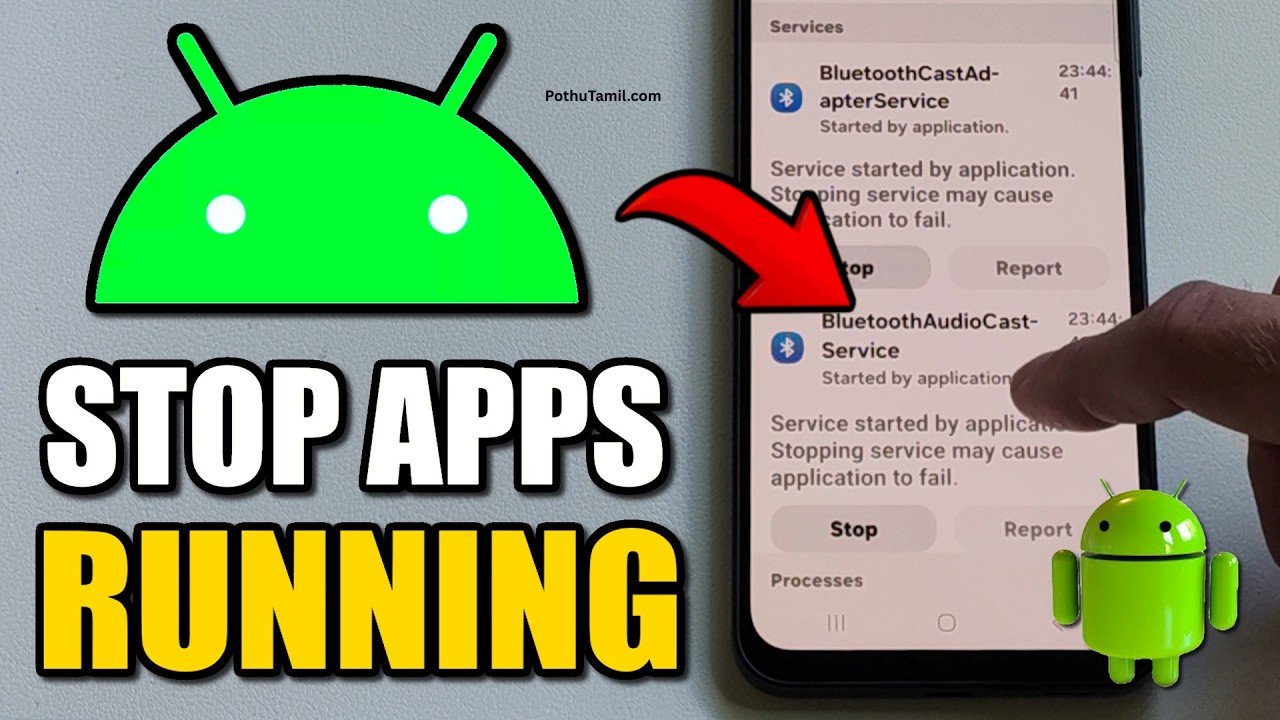
Why SMS Permission Is Important
Your SMS messages can contain OTP codes and other sensitive information.
If malware can improperly access notifications or SMS messages, it may increase the risk associated with accounts that use one-time passwords.
This is especially important for users who connect their smartphones to bank accounts, UPI services, credit cards, and financial apps.
Step 6: Secure Your Google Account
Removing malware from the phone is only part of the process.
If you believe a malicious application may have accessed your account information, perform a Google Account Security Checkup.
Review:
- Recent security activity
- Unknown devices
- Account access
- Unfamiliar sign-ins
- Connected services
If you find suspicious activity, change your password from a trusted device and review your account’s security settings.
This is particularly important for accounts connected to online banking, financial services, email, business accounts, and social media.
Step 7: Protect Banking and UPI Apps
If you suspect that your Android phone has malware, be extra cautious with banking apps, UPI apps, payment applications, and investment platforms.
Avoid entering:
- Banking passwords
- Credit card information
- UPI credentials
- Financial account passwords
- Other sensitive login information
into suspicious apps or websites.
For Indian users, this step is particularly important because smartphones are commonly used for UPI payments, mobile banking, investment apps, digital wallets, and online financial services.
Check Your Financial Accounts After a Malware Incident
If you believe malware may have accessed sensitive information, review recent financial activity after cleaning the device.
Look for transactions or account activity you do not recognize.
For serious or suspicious financial activity, contact the relevant bank, UPI provider, card issuer, or financial service through its official support channel.
Step 8: Be Careful With APK Files
Installing an APK file from an unknown website can increase security risks.
Before installing an APK, ask yourself:
- Who published the application?
- Is the developer trustworthy?
- Why isn’t the app available through Google Play?
- Does it request unnecessary permissions?
- Is there an official version?
- Does the download website provide reliable information?
For most users, obtaining applications through the Google Play Store is the safer approach.
Avoid Cracked and Modded Apps
Free versions of paid applications can sometimes be advertised through third-party websites as “mod APKs,” “premium unlocked APKs,” or “cracked apps.”
These downloads can create unnecessary malware and privacy risks.
If you need a paid application, use the official Google Play listing or the developer’s legitimate distribution channel rather than downloading an unknown modified version.
Step 9: Consider Premium Mobile Antivirus Software
Android already provides built-in security features, but some users may want additional protection.
A reputable premium mobile antivirus product may offer features such as:
- Real-time malware scanning
- Threat detection
- Phishing protection
- Malicious website detection
- Additional privacy or security monitoring
For users who frequently download files, browse unfamiliar websites, or use their phone for online banking and business activities, additional security software may be worth considering.
Best Android Security Tools to Consider
| Security Tool | Best For | Key Features | Cost |
|---|---|---|---|
| Google Play Protect | Everyday Android security | App scanning, malware detection, harmful-app warnings | Included |
| Google Account Security Checkup | Account protection | Security alerts, device review, account checks | Free |
| Android Security Updates | Device protection | Vulnerability fixes, security patches | Usually included |
| Premium Mobile Antivirus | Advanced cybersecurity | Real-time scanning, threat detection, phishing protection | Free / Paid plans |
You can keep Google Play Protect enabled even when using additional mobile antivirus software such as Bitdefender, Kaspersky, or Norton. Features and pricing vary depending on the provider and subscription plan.
When Should You Factory Reset an Android Phone?
A factory reset should generally be considered a last resort rather than the first step.
If malware-like symptoms continue after removing suspicious applications, updating Android, checking permissions, and running security scans, a reset may be appropriate.
Before doing this, make sure important photos, contacts, documents, and other data are safely backed up.
A factory reset removes data and applications from the device, so it should not be treated as a casual troubleshooting step.
How to Prevent Android Malware in the Future
Once your phone is clean, prevention becomes the most important part.
Follow these habits:
- Keep Google Play Protect enabled
- Install Android and security updates promptly
- Download apps from trusted sources
- Avoid suspicious APK files
- Don’t install “modded” or cracked apps from unknown websites
- Review sensitive app permissions
- Avoid clicking suspicious links
- Don’t enter banking credentials into unfamiliar websites
- Use strong passwords and account security features
- Review Google Account security activity regularly
- Keep your important financial apps updated
For people using Android smartphones for UPI payments, online banking, investment platforms, and business transactions, basic mobile security should be treated as part of everyday financial security.
Final Thoughts
Knowing how to remove malware from Android phone is not only about making the device faster again. Your smartphone may also contain access to UPI apps, online banking, email, credit cards, investment accounts, business applications, and personal information.
Start with Google Play Protect, remove suspicious applications, install the latest Android security updates, review app permissions, secure your Google Account, and be extremely careful with unknown APK files.
If you regularly use your Android phone for financial transactions, adding reputable cybersecurity software can provide another layer of protection alongside Android’s built-in security features.
The most important rule is simple: don’t ignore unusual phone behavior when your smartphone is also your financial device.
Jshfsgbshshsjeuiekk
Battery saver app
Please help
I like this
Ragini Bala